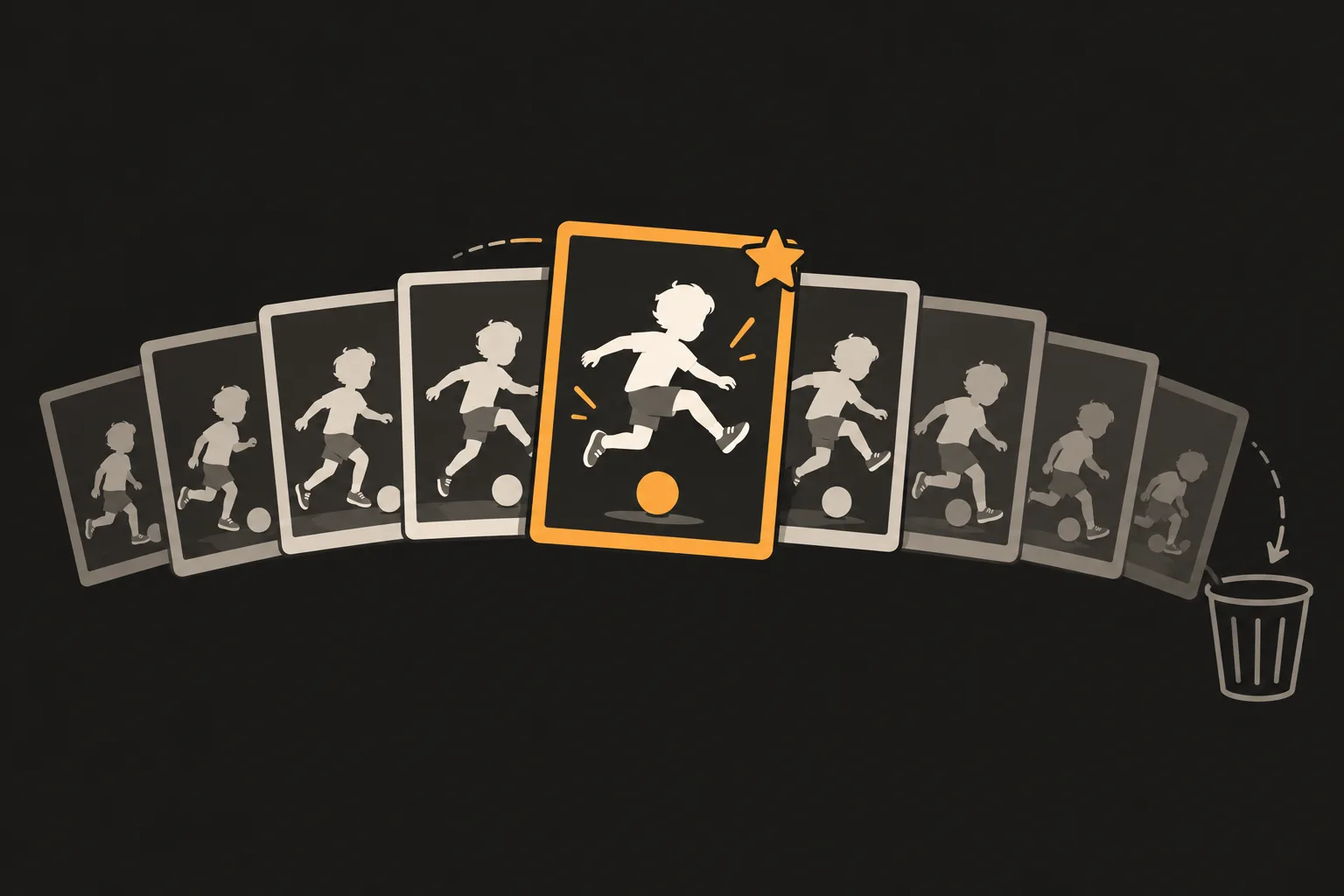
To delete a whole burst, open the Burst thumbnail in the Photos app and tap the Delete button (the trash can). To keep the best shots as separate photos, tap Burst (number) on iOS 26 and 27, or Select on iOS 18 and earlier, then tap the circle in the lower-right corner of each shot you want and tap Done. A burst shows up as one thumbnail in Photos, but there are many rapid-fire shots inside.
Updated 21 October 2026. Checked against Apple Support for iOS 27, 26 and 18.
Apple's iOS 26 and 27 guide doesn't say what happens to the rest of the burst after you tap Done. Use the iOS 14 steps below as a reference, but read what your screen says before you tap.
Apple's guide for iOS 18 and earlier says to tap the Burst thumbnail, then tap Select. The rest is the same: tap the circle on each shot you want to keep, then tap Done.
Apple's iOS 14 guide has one more step after Done, where you choose one of two options.
Apple's guides for iOS 15 and later don't describe this step, so they don't confirm whether newer iOS versions show the same screen.
The Photos app saves a burst together under a single thumbnail. Open the burst and tap Burst (number), or Select on iOS 18 and earlier, to see each shot inside.
Apple's iOS 26 and 27 guide says to tap the Burst thumbnail, then tap Burst (number). Then tap the circle in the lower-right corner of each shot you want to keep and tap Done.
According to Apple's iOS 14 guide, Keep Everything keeps the burst and the photos you selected, while Keep Only [number] Favorites keeps only the ones you selected. To clean up a burst, tap Keep Only [number] Favorites. Apple's guides for iOS 15 and later don't describe this step.
Deleted photos stay in Recently Deleted for 30 days. To delete them permanently without waiting, go to Collections, then Recently Deleted below Utilities, tap View Album, unlock your iPhone, select the photos and delete them. Photos deleted this way can't be recovered.
On iPhone XS, iPhone XR and later, swiping the Shutter button to the left in the Camera app starts a burst, and lifting your finger stops it. On iPhone X and earlier, you touch and hold the Shutter button. On iPhone XS, XR and later, if Use Volume Up for Burst is turned on in Settings > Camera, pressing and holding the volume up button also takes a burst.
If you have a lot of bursts, PhotoSlimmer can gather them in one place. It reads the frames that the Photos app shows only as a single representative photo, and lists each burst as one Burst group in Similar Photos. A group opens with nothing selected. Use Compare side by side, then tap Keep only this one, and the rest of the burst is selected for deletion. iOS asks you to confirm every deletion, and deleted photos go to Recently Deleted. Your photos never leave your phone. You can delete up to 50 photos a day for free, and a one-time purchase removes the limit, with no subscription (iOS 18.0 or later).