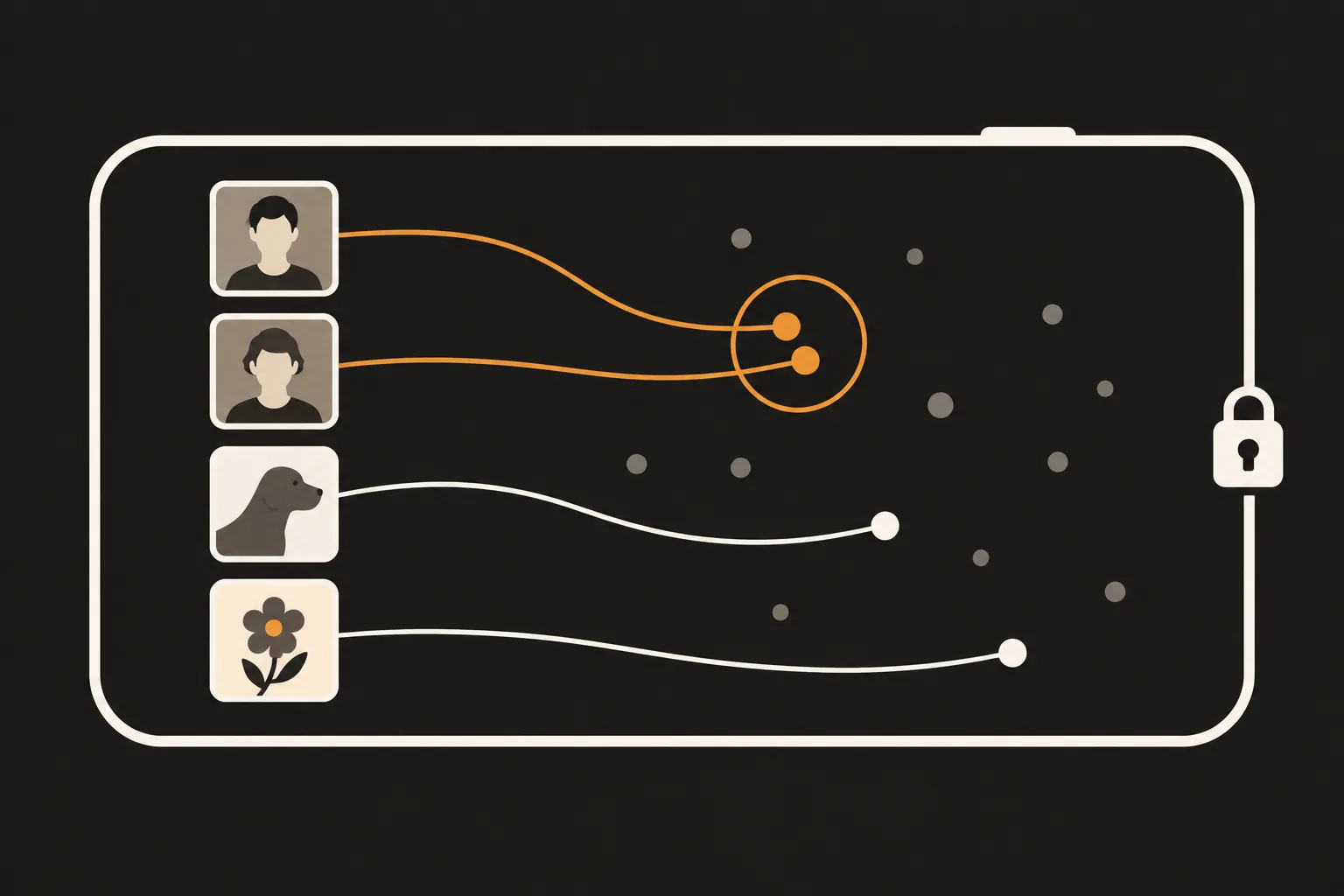
Similar photos can be found by turning what each photo looks like into a list of numbers, called an embedding, and then checking how close those numbers are. Looks alone can be misleading, so the time each photo was taken is taken into account too. None of this needs a server. It can all run on your phone.
Written 21 October 2026.
The Duplicates album in the iPhone Photos app finds duplicate photos and videos in your library and merges them into one. On iOS 27, open Collections, tap Utilities, then Duplicates, tap Merge, and then tap Merge [number] Items. Apple doesn't publish the exact rules it uses to decide what counts as a duplicate (Apple Support). For the steps on other iOS versions and what to do when the album is missing, see How to find and delete duplicate photos on iPhone and Duplicates album not showing on iPhone?.
Retakes are a different case. Retake a group photo three times and you get three photos with slightly different faces and angles. They aren't copies of one photo. They are three different photos, so instead of merging them you keep the one you like and delete the rest. To find them, an app has to ask "do these look alike?" rather than "is this the same file?"
A computer can't look at a photo the way you do. It works with a list of numbers that describes how the photo looks. That list is called an embedding, and it's produced by an AI model trained to recognize images.
Think of a map. Any place on a map can be pinned down with two numbers, latitude and longitude. An embedding pins down how a photo looks with many more numbers than that. You can't draw a map with that many directions, but the idea is the same: photos that look alike sit close together, and photos that look different sit far apart.
That's the basic idea. The comparison measures how closely two lists of numbers point in the same direction, a calculation called cosine similarity. The closer the score is to 1, the more alike the photos look, and once it passes a set threshold the photos count as similar.
Chaining comparisons together causes trouble, though. A can look like B, and B like C, without A looking anything like C. Link them one after another and a single group can end up with completely different photos at either end. So the comparison doesn't stop after one pass. Groups are checked again in several steps to make sure the photos in them really are alike.
Looks alone can mislead. Photos from the same spot on different days, or a child photographed in the same corner every morning, can look alike even though you'd want to keep each one. The similar photos people want to clean up are often shots taken one after another in the same place, so checking whether photos were taken close together in time cuts down on this kind of mix-up.
Yes. This approach can miss or misgroup these:
It's a list of numbers that sums up how a photo looks. The closer two photos' numbers are, the more similar they are considered.
Duplicates is a Photos app feature that finds duplicate photos and videos in your library and merges them into one. Finding similar photos groups shots that look alike and were taken around the same time, even when they aren't copies, and a person chooses which ones to keep.
No. Turning photos into numbers and comparing them can be done on the phone. PhotoSlimmer has no server to send photos to, and the Android version has no internet permission.
They may have been taken far apart in time, or not analyzed yet. A strict threshold can also split one scene into separate groups, so try a looser setting.
Photos that look alike can still differ in expression or focus, and you may want to keep one for that reason, so it's safer for a person to look and choose. PhotoSlimmer never deletes anything on its own and never pre-selects photos.
PhotoSlimmer is a photo cleaner that groups similar photos using these ideas. Your photos never leave your phone. Tap Similar Photos on the home screen to see the groups, and set the Grouping Criteria to one of three levels: Loosely similar, Similar or Almost identical. The app never deletes anything on its own or selects photos for you. Use Compare side by side, then Keep only this one to choose. You can delete up to 50 photos a day for free, and a one-time purchase removes the limit, with no subscription. It works on iPhone (iOS 18 or later) and Android (Android 11 or later).