Your screenshots are kept in their own Screenshots collection under Media Types in the Photos app. On iOS 26 and 27, open Photos, tap Collections, scroll down to Media Types, then tap Screenshots. Tap Select, slide your finger across the ones you don't need, then tap the Delete button. Deleted screenshots stay in Recently Deleted for 30 days.
Written 21 October 2026. Menu names checked against Apple Support for iOS 18, 26 and 27.
Photos groups the screenshots saved in your library by media type.
iOS 18: there is no Collections button. Open Photos, scroll down, tap Media Types, then tap Screenshots.
iOS 17: tap Albums, then tap Screenshots below Media Types.
If you open it often on iOS 26 or 27, add Screenshots to Pinned. Tap Edit next to the Pinned heading at the top of Collections and add it, so you don't have to scroll next time.
If you use iCloud Photos, anything you delete is also deleted on your other devices signed in to the same Apple Account. Back up any screenshots you still want first.
Deleted screenshots aren't gone right away. They stay in Recently Deleted for 30 days, where you can still recover them, and are then permanently removed from all your devices. If your storage looks the same after deleting, first check whether the screenshots are still there. To remove them sooner, delete them there too.
To empty the whole album, don't pick items in step 3. Tap Cancel, tap Select again, then tap the More button, tap Delete All, and confirm as in step 4.
iOS 18: in Photos, swipe up, tap Recently Deleted (below Utilities), then tap View Album. Tap Select, choose the items, tap the More button at the bottom of the screen, then tap Delete.
Anything you delete from this album can't be recovered, so check before you tap.
They're saved to your photo library. To see only your saved screenshots on iOS 26 and 27, open Photos and tap Collections, then Media Types, then Screenshots. On iOS 18, scroll down in Photos, tap Media Types, then tap Screenshots.
Open the Screenshots collection and tap Select. Tap each screenshot you want to remove, or slide your finger across several to select them together. Then tap the Delete button and confirm.
Deleted photos stay in Recently Deleted for 30 days, so first check whether they're still there. On iOS 26 and 27, go to Collections, tap Recently Deleted below Utilities, tap View Album and unlock it, then select the items and delete them permanently.
On iOS 26 and 27, tap the Close button on the screenshot preview to cancel or delete it. On iOS 18, screenshots save to your library automatically, so delete it from the Screenshots collection.
Photos has content-based collections such as receipts, handwriting and QR codes. On iOS 26 and 27 they're in Collections > Utilities, and on iOS 18 you scroll down in Photos and tap Utilities. Open a collection, tap Select and delete the ones you don't need.
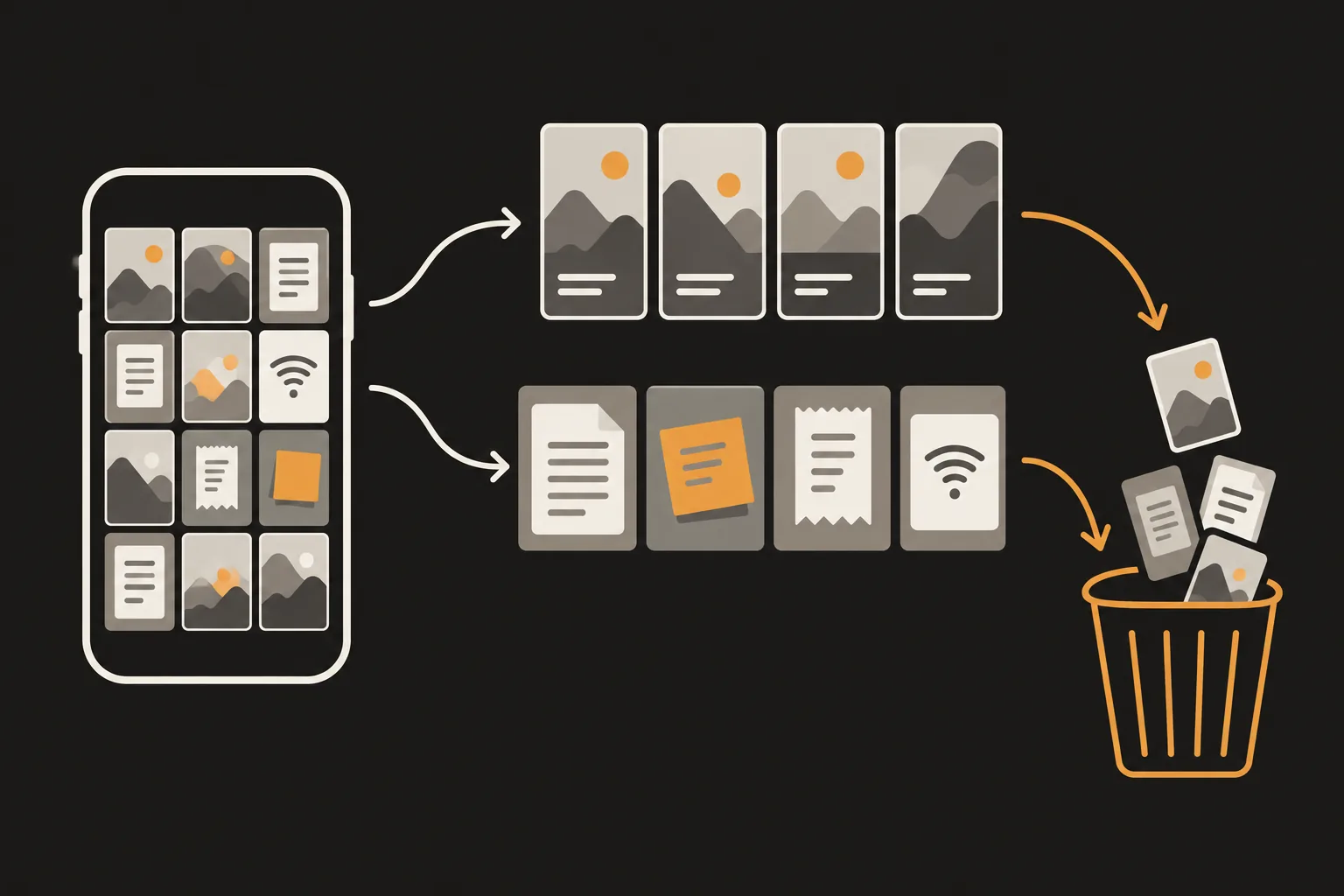
PhotoSlimmer is a photo cleaner we make at newmean.ai. It finds blurry, eyes-closed and similar photos on your phone, and its Info & Screens tab puts your screenshots in one list with photos that hold information, like pictures of documents, notes or a Wi-Fi password. If you have both kinds, tap the menu button above the list and use Type to show only Screenshots or Camera photos. The sorting runs on your phone with an AI model built into the app, so nothing is uploaded and you don't need to sign up. It isn't always right: screenshots it judges to have people in them go to People, and photos you want to keep can end up in the list, so look before you delete. It never picks or deletes anything on its own, and every delete shows the iOS confirmation. You can delete up to 50 photos a day for free, and a one-time purchase removes the limit, with no subscription. It needs an iPhone with iOS 18.0 or later.